
Learning how to install Xtreme HD IPTV starts with identifying your device, choosing a compatible IPTV player, and entering the subscription credentials in the correct format. Xtreme HD IPTV access may be supplied through login details rather than through a dedicated application, so the player and subscription must be configured separately.
The basic process is to purchase or test a plan, install a compatible player, add the supplied username, password, and server address, and then allow the playlist and program guide to load. Application availability and setup steps can vary by device, operating system, model, and location.
Xtreme HD IPTV currently provides paid 2-hour and 36-hour testing options. These are not free trials. They allow users to check device compatibility, playlist loading, available categories, and general performance before choosing a longer subscription.
Compare Xtreme HD IPTV plans to review the available durations and connection options before starting the installation.
Table of Contents
Table of Contents
What You Need Before Installation
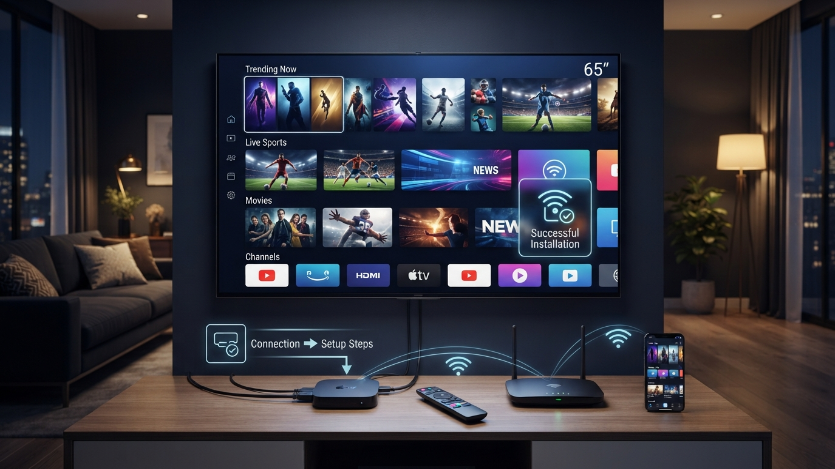
Before installing anything, confirm that you have an active subscription or paid test. Installing an IPTV player alone does not provide channels or activate access.
You will normally need a username, password, and server address. Some configurations may instead use an M3U playlist URL or another supported login method.
Keep the original delivery message available during setup. Entering an incomplete server address or adding an extra space to a password can prevent the account from loading.
Your device must support a compatible IPTV player. Android TV devices, Fire TV devices, smartphones, tablets, computers, and certain smart televisions can use IPTV applications, but they do not all support the same software.
Check the number of simultaneous connections included in your plan. Installing the same credentials on multiple devices does not necessarily authorize all those devices to stream at the same time.
You should also have a stable internet connection. Download speed matters, but Wi-Fi interference, packet loss, router performance, network congestion, and the selected stream source can also affect playback.
How to Install Xtreme HD IPTV Step by Step
The exact menus depend on the selected application, but the following process applies to most compatible players.
Confirm Your Subscription Details
Open the message containing your Xtreme HD IPTV credentials. Identify the username, password, server address, playlist link, and expiration date.
Do not publish these details in a public group or send screenshots containing the complete login. Anyone with access to the credentials may be able to use or compromise the account.
Check whether the plan includes one connection or multiple simultaneous connections. This prevents accidental overuse after the installation is complete.
Choose the Main Viewing Device
Install the service first on the device you expect to use most often. Testing only on a phone does not confirm that the same experience will be available on an older television or streaming box.
Review the current setup guide for device-specific instructions. Follow the login format stated in the delivery message rather than selecting a random setup method.
Install a Compatible IPTV Player
Search your device’s official application store for a reputable player that supports the supplied login format. Verify the developer, recent update information, permissions, and operating-system compatibility.
When the required application is not available in the official store, follow only a documented installation source you trust. Avoid modified APK files, shortened links, and downloads shared by unknown accounts.
The player may require a separate license or premium activation. Paying for an application does not purchase an Xtreme HD IPTV subscription, and purchasing the subscription does not necessarily include a paid player license.
Add the Subscription Credentials
Open the player and select the appropriate login method. Common options may include Xtream Codes-style access, an M3U playlist, or a portal-based configuration.
Create a recognizable profile name. The profile name is normally only a local label and does not change the account.
Enter the username and password exactly as provided. Passwords can be case-sensitive, and characters such as zero, the letter O, uppercase I, and lowercase l can look similar.
Enter the complete server address, including the required protocol and port when supplied. Do not remove characters because the address looks longer than expected.
Allow the Playlist to Load
After saving the profile, the player may begin downloading live categories, on-demand sections, logos, and electronic program guide data. The first synchronization may take longer than later launches.
Avoid closing the application immediately. Large playlists can require additional processing time on devices with limited memory or slower processors.
When the playlist fails to load, check the credentials before reinstalling the application. A typing error cannot be corrected by repeatedly installing the same player.
Test Several Categories
Open a selection of live channels from categories you plan to use. Test more than one source because a problem affecting an individual channel does not prove that the entire account is unavailable.
Review the current channel list before choosing a long plan. Channel and 4K availability can vary by plan, source, device, application, location, and internet connection.
Check picture stability, audio synchronization, channel-switching time, subtitles where available, and program guide behavior. Test during the hours when your household normally watches.
Restart and Retest
Close the application completely and restart the device. Reopen the player to confirm that the profile and playlist remain saved.
Restarting can reveal storage, permission, and application problems that were not visible during the initial setup. It also confirms that you understand how to return to the account after the device powers off.
Device Compatibility Comparison
| Device | Typical Installation Method | Main Advantage | Important Limitation |
|---|---|---|---|
| Amazon Fire TV | Compatible app or documented manual installation | Flexible and widely used | Storage and app availability vary |
| Android TV | Official app store player | Multiple player choices | Performance depends on hardware |
| Google TV | Compatible app from the app store | Modern interface and broad support | Entry-level devices may have limited storage |
| Samsung Smart TV | Compatible Tizen application | No external device required | Cannot install standard Android APK files |
| LG Smart TV | Compatible webOS application | Direct television installation | Application selection varies by region |
| Android phone or tablet | Google Play-compatible player | Useful for account testing | Not equivalent to television performance |
| iPhone or iPad | Compatible iOS player | Portable secondary device | Android APK files are not supported |
| Windows or Mac | Compatible desktop player | Useful for troubleshooting | Interface differs from television apps |
The most suitable option is not always the device with the largest screen. Application availability, processing power, storage, network connection, and remote-control usability also matter.
A separate streaming device may offer more player choices than an older smart television. It can also be replaced without replacing the entire television.
Choosing a Compatible IPTV Player
A compatible player must support the login method provided with the subscription. Do not choose an application only because its name includes IPTV or resembles the provider’s branding.
Check whether the player supports live categories, available on-demand sections, favorites, search, subtitles, multiple audio tracks, parental controls, and electronic program guide data.
A simple player may be enough for one viewer. A household that uses several profiles or devices may prefer more advanced organization features.
Performance can differ between players. One application may use a decoder that works well on a particular device, while another may produce audio problems or application crashes.
Testing a second compatible player is a useful troubleshooting step. When the same credentials work in the second application, the original player is more likely to be the problem.
Third-party application names and trademarks are mentioned only for compatibility. Their use does not imply ownership, endorsement, or affiliation with Xtreme HD IPTV.
Internet and Hardware Requirements
Streaming quality depends on the complete setup, not only the subscription. The device, application, router, internet provider, local network traffic, and selected source all affect performance.
Use Ethernet when the device and router support it. A wired connection reduces Wi-Fi interference and signal variation, although it cannot repair an unavailable source or expired account.
When using Wi-Fi, position the device within a reliable range of the router. Thick walls, neighboring networks, wireless cameras, and other connected equipment can reduce stability.
Pause large downloads, cloud backups, game updates, and other high-bandwidth activity during testing. This helps separate subscription performance from local network congestion.
A speed test can provide useful information, but it does not measure every factor. Packet loss, unstable latency, overloaded routers, and poor internet routing may cause interruptions even when the reported download speed is high.
Older streaming devices can struggle with large playlists and guide data. Remove unused applications, clear unnecessary files, and restart the device before completing the setup.
4K playback requires more than a 4K television. The plan, channel source, application, streaming device, display, cable configuration, and connection must all support the requested resolution.
Testing Before Choosing a Longer Plan
A short paid test lowers the risk of purchasing a plan that does not match your device or viewing requirements. Xtreme HD IPTV currently offers paid tests lasting 2 hours and 36 hours.
The 2-hour option is appropriate for checking activation, credential entry, playlist loading, and basic channel access. It provides limited time for testing different viewing periods.
The 36-hour option allows more complete testing across daytime and evening hours. It also provides more time to check several devices, applications, categories, and network conditions.
Neither option should be described as a free trial. Review the current conditions on the paid trial page before ordering.
During the test, create a checklist containing your preferred categories, main device, backup device, player stability, EPG behavior, channel changes, and simultaneous connection requirements.
Do not spend the entire trial browsing a large playlist. Focus on the content and features that affect your buying decision.
A 12 month IPTV subscription can reduce renewal frequency, but it creates a longer commitment. Choose it only after the service has passed your compatibility and content checks.
Common Installation Problems
The Player Rejects the Login
Re-enter the username, password, and server address manually. Check for spaces before or after each value.
Confirm that the account has been activated and has not expired. When possible, test the same details in another compatible player.
The Playlist Does Not Load
Restart the application and device. Check the internet connection and confirm that the complete server address was entered.
A large playlist can take additional time to process. Allow the first synchronization to complete before assuming that it has failed.
Categories Appear but Channels Do Not Play
Test several channels from different categories. An individual stream can be temporarily unavailable while other sources remain functional.
Compare Wi-Fi with Ethernet or a mobile connection. Test another compatible player to identify application-specific decoder problems.
The EPG Is Empty
Refresh the guide inside the application. Confirm the device time, date, and time zone.
Guide availability depends on the source and application. A missing EPG does not necessarily mean that the live account is inactive.
The Application Freezes
Clear the application cache, remove unused device storage, restart the device, and update the player when a trusted update is available.
Older hardware may struggle with large playlists, high-resolution images, or extensive guide data.
Playback Buffers
No provider can promise zero buffering. Check local network traffic, Wi-Fi strength, device performance, application settings, and several different sources.
When basic troubleshooting fails, use the Xtreme HD IPTV Help Center and provide the exact device, application, error message, and tests already completed.
Common Buying Objections
“I Need a Special Xtreme Application”
Not necessarily. Many subscriptions work through compatible third-party players using the credentials supplied after purchase.
Follow the current provider instructions instead of downloading an application only because it uses a similar name.
“Installing the Player Gives Me the Channels”
The player is only the interface. An active subscription or paid test is still required.
Application activation and subscription activation may be separate transactions.
“One Connection Works on Every Screen at Once”
One connection normally permits one simultaneous stream unless the plan states otherwise. The profile may be installed on several devices, but simultaneous use must remain within the purchased limit.
“The Longest Plan Must Be the Best Value”
A longer plan can offer convenience after compatibility has been confirmed. It is not the correct starting point when the device, application, and preferred categories have not been tested.
“A Fast Internet Plan Prevents Every Interruption”
Internet speed is only one factor. Stream sources, application behavior, device limitations, routing, and network congestion can still affect playback.
Conclusion
Understanding how to install Xtreme HD IPTV requires separating the subscription from the player, selecting a compatible device, entering the credentials accurately, and testing the complete setup under normal viewing conditions.
Begin with the main household device, use a trusted player, test several relevant categories, and restart the equipment before completing your evaluation. Channel and 4K availability may vary according to the plan, source, device, application, location, and connection.
Compare Xtreme HD IPTV plans after completing a paid test and confirming that the service fits your device, application, content, and simultaneous connection requirements.
Frequently Asked Questions
How do I install Xtreme HD IPTV?
Install a compatible IPTV player on your device, select the login format supplied with your order, and enter the username, password, and server address exactly as provided. Allow the playlist to load before testing several channels.
Does Xtreme HD IPTV provide an application?
The setup may use a compatible third-party player rather than a dedicated application. Follow the current setup instructions supplied with the plan and avoid unverified downloads.
Can I install Xtreme HD IPTV on Firestick?
A compatible player can be installed on supported Fire TV devices. Use the current Firestick installation guide and obtain applications from trusted sources.
Is the Xtreme HD IPTV trial free?
No. Xtreme HD IPTV currently provides paid 2-hour and 36-hour testing options.
Can I use one subscription on multiple devices?
The profile may be installed on more than one compatible device, but simultaneous playback must remain within the number of connections included in the purchased plan.
Why are some channels missing after installation?
The playlist may need to be refreshed, or availability may differ according to the plan and source. Channel lineups can also be updated over time.
Why does the account work on my phone but not my TV?
The television application may not support the same login format, decoder, or operating-system requirements. Test another compatible television player or an external streaming device.
Should I purchase a 12-month plan immediately?
Complete a paid test first. Choose a longer plan only after confirming device compatibility, relevant categories, application stability, and normal network performance.
Focus keyword usage count: 9, including the SEO fields and URL
Secondary keywords used: install Xtreme HD IPTV, Xtreme HD IPTV setup, IPTV player, IPTV subscription, paid IPTV trial, 12 month IPTV subscription
SEO title character count: 52
Meta description character count: 159
Suggested schema type: HowTo with FAQPage schema
Suggested featured image alt text: How to install Xtreme HD IPTV on compatible streaming devices