
Learning how to install Xtreme HD IPTV on Samsung TV requires choosing an application compatible with Samsung’s television operating system. A standard Android APK cannot normally be installed directly on a Samsung Smart TV because Samsung televisions generally use Tizen rather than Android.
The practical setup is to install a compatible IPTV player from the Samsung application store, enter the subscription credentials, and test the playlist. When the television does not support a suitable player, an external Fire TV, Android TV, Google TV, or another compatible streaming device may provide more options.
Xtreme HD IPTV currently offers paid 2-hour and 36-hour test options. These tests are not free. They can be used to verify application compatibility, playlist loading, channel access, and general performance on the specific Samsung television.
Check the current Xtreme HD IPTV plans before choosing a subscription duration or number of simultaneous connections.
Table of Contents
Table of Contents
Understanding Samsung TV Compatibility
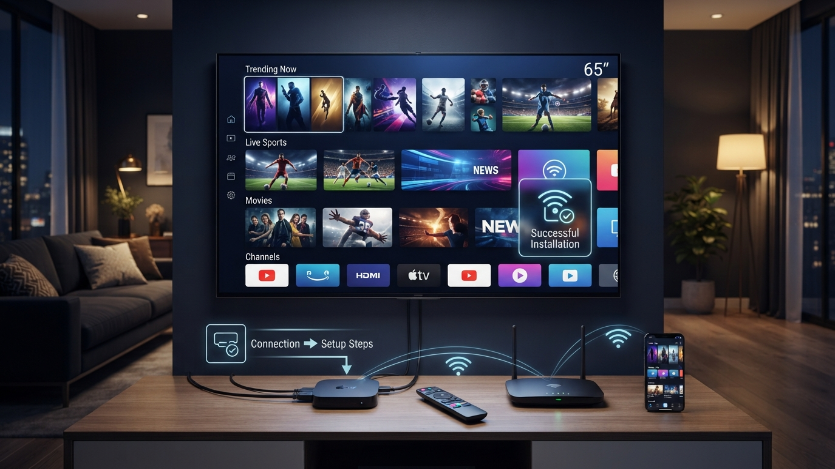
Samsung Smart TVs do not use the same operating system as Android TV devices. Most recent Samsung televisions use the Tizen platform and obtain applications through Samsung’s integrated app store.
This means that Android APK files designed for phones, tablets, Fire TV devices, or Android TV boxes cannot normally be installed directly on the television. Websites claiming that any Android APK can be placed on every Samsung TV should be treated cautiously.
The available IPTV players can vary according to television model, production year, country, account region, and application-store changes. Verify availability directly on the television before purchasing a long subscription.
An IPTV player is not the subscription itself. The player displays the service after the user enters active credentials supplied by the provider.
Some players require a separate activation payment. This payment belongs to the application developer and does not automatically include Xtreme HD IPTV access.
When no suitable player is available, connect an external streaming device through an HDMI port. This avoids replacing the television and can provide access to a broader range of applications.
What You Need Before Setup
Confirm that the Samsung television is connected to the internet. Open an existing streaming application or run the television’s network test to verify access.
You need an active Xtreme HD IPTV subscription or paid test. Keep the delivery message containing the username, password, server address, or playlist URL available.
Check the supplied login format. The player must support that specific method, whether it uses Xtream Codes-style credentials, an M3U playlist, or another compatible configuration.
Have the Samsung remote control available. Entering a long server address with a remote can be slow, so verify every character carefully.
Check the number of simultaneous connections included with the selected plan. One connection should not be used for concurrent playback on several devices unless the plan explicitly allows it.
Review the Xtreme HD IPTV setup guide before installing an application. Current provider instructions should take priority over older videos or forum posts.
How to Install Xtreme HD IPTV on Samsung TV
Connect the Television to the Internet
Open the Samsung settings menu and locate the network section. Connect the television through Ethernet or Wi-Fi.
Ethernet is generally more stable because it avoids wireless interference. When Ethernet is unavailable, use a strong Wi-Fi connection and position the router within a reliable range.
Test the connection before proceeding. An application cannot download or authenticate correctly when the television has no network access.
Open the Samsung Application Store
Open the Apps area from the television’s home screen. The exact menu design can differ according to model and software version.
Use the search function to look for a compatible IPTV player. Do not assume that an application is affiliated with Xtreme HD IPTV because it includes similar words or colors.
Check the developer name, description, recent update information, login methods, and user permissions. Application availability may vary by television region.
Install a Compatible Player
Select the chosen player and install it through the official Samsung store. Avoid websites that request disabling television security controls or installing unknown files.
Open the application after installation. Some players show a device identifier or request separate player activation before accepting a playlist.
Read the activation terms carefully. A player fee is separate from the IPTV subscription cost.
Select the Correct Login Method
Choose the login method that matches the credentials supplied with your order. Do not convert the credentials into another format unless the provider’s instructions explicitly explain how.
When the player supports username, password, and server URL entry, type all three values exactly. When it supports only an M3U link, use the complete playlist URL provided.
Some Samsung applications require playlist activation through the player developer’s website. Confirm that you are using the legitimate developer website before entering a playlist address.
Add the Xtreme HD IPTV Credentials
Create a clear profile name that helps you recognize the subscription. This local name can normally be chosen freely.
Enter the username and password carefully. Samsung’s on-screen keyboard may automatically capitalize the first letter, so verify that the capitalization matches the original credentials.
Enter the complete server URL. Check the protocol, punctuation, port, and final characters.
Never post a photograph of the credentials or playlist URL in public forums. Playlist links can contain private account information.
Load the Playlist
Save the profile and allow the application to load the available categories. Live channels, logos, electronic program guide information, and on-demand sections may load separately.
Older televisions can require more time to process a large playlist. Avoid repeatedly pressing buttons while the application is synchronizing.
When the playlist does not appear, recheck the credentials before deleting the application. Typing mistakes are a common cause of initial setup failure.
Test Relevant Channels
Open several categories and test channels that matter to your household. Do not judge the service using only one channel.
Check the current Xtreme HD IPTV channel list before purchasing. Channel and 4K availability can vary by plan, source, television, application, location, and internet connection.
Evaluate channel changes, picture quality, audio synchronization, EPG behavior, and application navigation. Test during normal viewing hours rather than only during a quiet network period.
Restart the Television
Close the player and restart the television. Reopen the application and confirm that the profile remains saved.
A restart can reveal whether the television has sufficient storage and whether the application loads reliably after power cycling.
Built-In App or External Device Comparison
| Setup Method | Advantages | Limitations | Suitable For |
|---|---|---|---|
| Samsung built-in IPTV app | No extra hardware or HDMI cable | App selection varies by model and region | Users with a supported recent television |
| Fire TV device | Broad streaming app selection | Requires an HDMI port and separate remote | Users seeking flexible app choices |
| Android TV box | Multiple compatible players | Hardware quality varies between devices | Users who want greater customization |
| Google TV device | Modern interface and app access | Requires separate purchase and setup | Users with unsupported television apps |
| Dedicated streaming box | Can provide stronger hardware | Often costs more than basic devices | Large playlists and frequent streaming |
| Phone screen casting | Useful for temporary testing | Less convenient for daily viewing | Short account verification |
The built-in television application is usually the simplest solution when it supports the supplied login format. An external device is more practical when the Samsung application store lacks a suitable player or the television struggles with playlist loading.
An external device does not automatically improve the channel sources. It can improve application choice, processor performance, storage, and decoder compatibility.
Entering the Subscription Details Correctly
Samsung’s on-screen keyboard can make credential entry difficult. Enter each field slowly and compare it with the original delivery message.
Passwords may be case-sensitive. Disable automatic capitalization when necessary and check similar-looking letters and numbers.
Do not shorten the server address. A missing port number, slash, colon, or protocol can cause an authentication error.
When copying is supported through a mobile companion application, confirm that no extra spaces have been inserted. Spaces at the beginning or end of a field can prevent login.
Save the account using a simple profile name. Avoid placing the password or personal information in the profile name.
When the player displays an expiration date, compare it with the purchased plan. Contact the seller when the displayed date does not match the order.
Internet and Television Requirements
A stable connection is necessary for live television playback. The television should remain connected to the same network throughout the test.
Use Ethernet when the router is close enough. A wired connection removes Wi-Fi signal variation, but performance can still depend on the source, application, device, and internet route.
For Wi-Fi, avoid placing the router behind heavy furniture or far from the television. Wireless interference can cause repeated loading even when other devices appear connected.
Pause major downloads and game updates during testing. Other household traffic can consume bandwidth or increase router load.
The television processor also matters. Older Samsung models may load large playlists slowly or close applications when memory is limited.
Remove unused applications where possible and restart the television. Keep the television software and selected player updated through trusted sources.
4K playback requires compatible content, plan access, television hardware, application decoding, internet capacity, and a suitable source. A 4K screen does not convert every channel into 4K.
Testing and Plan Selection
Use a paid test before committing to a longer subscription. The 2-hour option can verify that the account activates and that the Samsung player accepts the login.
The 36-hour option gives more time to test evening performance, several categories, EPG loading, television restarts, and alternative applications or devices.
These are paid tests, not free offers. Review the current conditions on the Xtreme HD IPTV trial page.
During testing, create a short checklist. Include your preferred channels, application stability, remote-control navigation, audio quality, EPG behavior, and restart performance.
Test the television under normal household network conditions. A test performed only while every other device is disconnected may not represent daily use.
When the built-in television application performs poorly, repeat the test using an external streaming device. This can identify whether the limitation comes from the account or Samsung hardware.
Select a 12 month IPTV subscription only after successful testing. A longer duration reduces renewal frequency but increases the upfront commitment.
Troubleshooting Samsung IPTV Problems
The Application Is Not in the Store
Availability may differ by television model, year, region, and Samsung account settings. Search using the exact player name and check whether the developer supports your model.
When no compatible player is available, use a supported external streaming device rather than downloading an Android APK directly to the television.
The Login Is Rejected
Check the username, password, and complete server address. Disable unwanted automatic capitalization.
Confirm that the subscription is active. Test the same credentials in another compatible player or device when possible.
The Playlist Loads Slowly
Allow additional time for the first synchronization. Large channel lists, logos, and EPG data can challenge older television processors.
Restart the television and remove unused applications. Test a player with a lighter interface or use an external device.
Channels Load but Do Not Play
Test multiple channels from different categories. Restart the router and television, then compare Ethernet with Wi-Fi.
Use another compatible application or external device to determine whether the Samsung player has a decoder limitation.
The EPG Is Missing
Refresh the guide inside the application and verify the television time zone. Guide availability depends on the application and data source.
A missing EPG does not automatically mean that the subscription is inactive.
The Player Requests Payment
Some IPTV applications charge separately for player activation. Confirm that the payment request belongs to the legitimate application developer.
Player activation does not purchase or renew the Xtreme HD IPTV subscription.
The Application Keeps Closing
Check the television’s available storage, restart it, and install trusted updates. Older hardware may not process a large playlist efficiently.
When the issue continues, contact the Xtreme HD IPTV Help Center with the television model, application name, error, and completed tests.
Common Objections
“I Found an Xtreme HD IPTV APK for Samsung”
Samsung’s Tizen televisions do not normally install standard Android APK files. A file using the provider’s name does not prove that it is authorized or compatible.
Use a Samsung app-store player or an external Android-based device.
“I Do Not Want Another Device”
A built-in application is appropriate when the television supports a compatible player and performs well. An external device is only necessary when application availability or hardware performance is inadequate.
“The Television Is 4K, So Every Channel Will Be 4K”
Display resolution is only one requirement. Channel and 4K availability varies by plan, source, player, device, location, and internet connection.
“One Successful Channel Proves Everything Works”
Test several categories, restarts, program guide loading, and normal peak viewing hours. One short session provides incomplete evidence.
Conclusion
Knowing how to install Xtreme HD IPTV on Samsung Smart TV begins with recognizing that Samsung televisions use their own application platform. Install a compatible player from the Samsung store, enter the credentials accurately, and use an external streaming device when the built-in options are unsuitable.
Test the service on the exact television, network, and application you plan to use. Confirm relevant categories, EPG behavior, channel switching, application stability, and restart performance before selecting a long subscription.
Compare Xtreme HD IPTV plans after completing the paid test and verifying that the Samsung setup meets your household’s viewing and connection requirements.
Frequently Asked Questions
Can I install Xtreme HD IPTV directly on Samsung Smart TV?
Yes, when the television’s application store contains a compatible IPTV player that supports the supplied credentials. The subscription is then added inside that player.
Can I install an Android APK on Samsung TV?
A standard Android APK does not normally run on a Samsung television using Tizen. Use a Samsung-compatible application or connect an external Android-based streaming device.
Which IPTV application should I use on Samsung TV?
Use a reputable player available for your exact Samsung model and region that supports the login format provided with the subscription. Application availability can change.
Is the Xtreme HD IPTV Samsung trial free?
No. Xtreme HD IPTV currently offers paid 2-hour and 36-hour test options.
Why does the playlist work on my phone but not my Samsung TV?
The Samsung player may use a different decoder, login format, or resource level. Test another compatible Samsung application or an external streaming device.
Can I use the same subscription on Samsung TV and Firestick?
The profile may be installed on both, but simultaneous playback must remain within the connection limit included in the plan.
Why can I not find the same app shown in an online guide?
Application availability can vary by country, Samsung model, television year, and app-store changes. Older instructions may no longer match the current store.
Should I use Wi-Fi or Ethernet on Samsung TV?
Ethernet is generally more stable when available. A strong Wi-Fi connection can also work, but it is more exposed to interference and signal variation.
Focus keyword usage count: 8, including the SEO fields and URL
Secondary keywords used: Samsung Smart TV IPTV, IPTV app for Samsung TV, Xtreme HD IPTV setup, IPTV subscription, paid IPTV trial, 12 month IPTV subscription
SEO title character count: 54
Meta description character count: 158
Suggested schema type: HowTo with FAQPage schema
Suggested featured image alt text: Install Xtreme HD IPTV on Samsung Smart TV using a compatible player